Default Event Reminder Email with Save Card Enabled
Silent Auction Emails
Emails are sent when a successful bid is made on a silent auction as well as when the donor is outbid. When an item or items are won an email goes out and a receipt is sent after payment.
Item Pick-up & Delivery Instructions
While planning the close and pickup for Silent Auction items, information about item up pickup or delivery may be added to the emails going out to the auction winners and donors who bought items by editing the auction campaign, scrolling down to Auction Settings and entering details in the Additional Instruction for Auction Winners textbox. Here’s an example of forms that can be added to this textbox:
- To schedule pick up, please complete this form.
- To schedule delivery, please complete this form.
Sample Emails
Silent auction winner
Silent auction bid confirmation
Multi-item receipt from event
Email when the donor is outbid on an auction item
Customizing with Optional Header and Footer
You may want to add important information to the various PayBee emails (like ticket confirmation emails, donation confirmation emails, etc. ) donors receive. This information may be added to the header or footer of these emails.
To add or make changes to the header or footer of your email, edit the campaign and scroll down to the Email Settings section and add your details. The text can be formatted using simple HTML formatting. Other parts of the email can't be modified.
Sample Emails
Email header and footer added to receipt
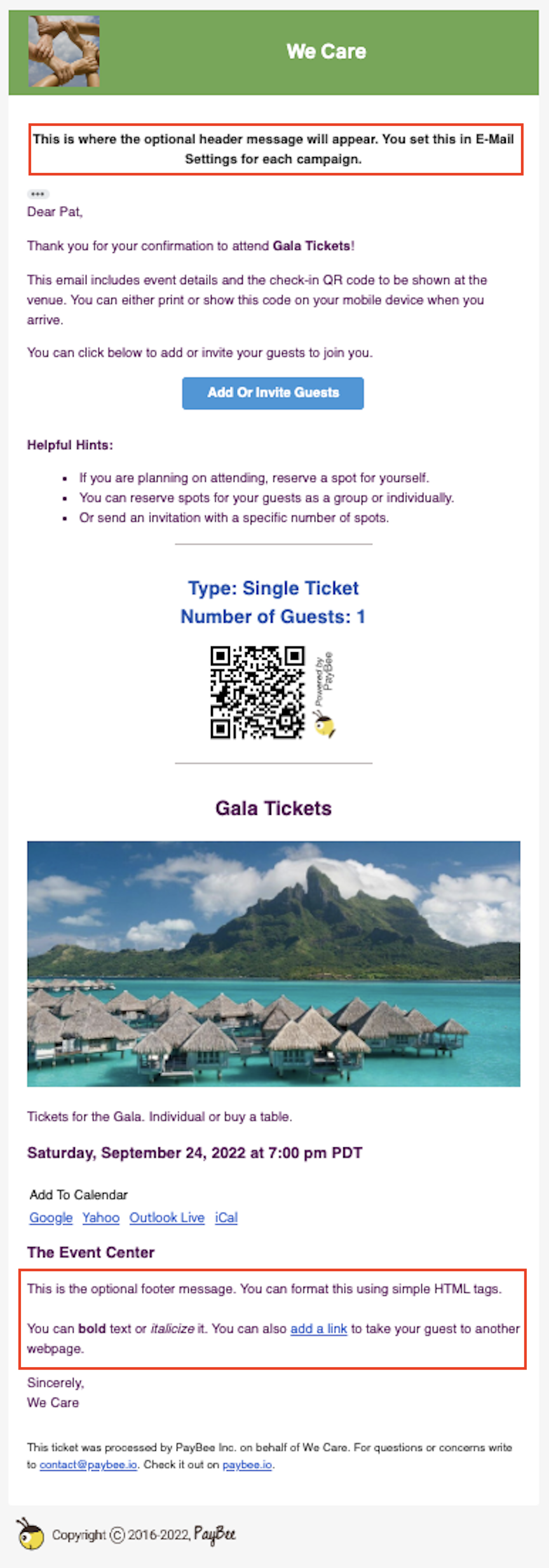
Email header and footer added to ticket
Event Page Invitation Emails
If you'd like to invite donors to attend your event, you can create an event page and either share the link/QR code to the event page via your website and social media or invite them via email through PayBee.
Sample Email
The email includes the image, name, description date and time and venue added when creating your event. Clicking on the Register button takes the donor to the event page.