> For the complete documentation index, see [llms.txt](https://docs.paybee.io/home/llms.txt). Markdown versions of documentation pages are available by appending `.md` to page URLs; this page is available as [Markdown](https://docs.paybee.io/home/resources/general-campaign-settings/campaign-settings.md).
# Campaign Settings
Are your campaigns showing up as "Not Active"? How can I start sharing links with my donors? How can I find an explanation of every setting?
The following resources are available on this page:
* [Activating Campaigns](#activating-campaigns)
* [HTML Formatting](#html-formatting)
* [Image Requirements](#image-requirements)
* [Adding Videos From YouTube & Vimeo](#adding-videos-from-youtube-and-vimeo)
* [Sharing Campaigns](#sharing-campaigns)
* [Add Sponsors](#add-sponsors)
* [Preview the Campaign](#preview-the-campaign)
## Activating Campaigns
If you've finished setting up your campaigns, you'll want to make sure that your campaigns are set to 'Active' in order to be able to preview them as well as send the link out to your donors to participate.
To do this, Edit each one of your campaigns and ensure that the Start Date of the campaign is set to the present day. If your campaign is set to a date in the future, it will not show up as an 'Active' campaign until that day.
Once your campaigns are active, you can return to your Campaigns page, there you'll see a QR code with a link underneath next to each of your campaigns. To start sharing with your donors, all you need to do is either share the QR code or link with them!
**Important note:** If you are setting up a **Silent Auction** campaign, the campaign Launch Date is **NOT** the same as the day the auction will go live and enable bidding. The Campaign Launch/End Date will be the active or visible date of the campaign so that you can preview what the donors will see. Under Auction Settings, you can enable bidding automatically by selecting a start date and time.
You can also set an end date and time to automatically pause the bidding. You can choose to end the auction automatically or manually to select winners and send notifications.
## Image Requirements
All images on PayBee (except your logo) should be a 2:1 ratio (2 wide: 1 high) and the file should be no larger than 5MB\
\- *recommended pixel size: 1200x600*
The logo should be a 1:1 ratio (1 wide: 1 high) and the file should be no larger than 5MB\
*- recommended pixel size: 900x900*
## Adding Videos From YouTube & Vimeo
You can add videos to your auction items, event landing page and virtual event (livestream video) by embedding videos from YouTube, Vimeo, Facebook, etc.
### Adding Videos From YouTube
1. Upload your video on YouTube.
2. Open your video on YouTube (as you would to view the video). The image below shows what your video must look like when you open it on YouTube.

2\. On the video page, select **Share** on the right, below the video. Select **Embed**.
3\. You will see a small window pop up with some code. Copy the YouTube link that shows up after 'src =' in the code without including the quotes.
For example, in the embedded code below:
You would be copying the outlined portion like this: ****
If you find it hard to copy, you can copy the entire code, paste it somewhere else and only select and copy the YouTube link portion similar to the outlined link in the image above. The YouTube embed link should always has the word '**embed**' in it.
### Adding Videos From Vimeo
1. Upload your video on Vimeo
2. Open your video on Vimeo as you would to view the video.
3. On the video page, select **Share** on the right, below the video. Select **Embed**. You will see a small window pop up with some code. Copy the Vimeo link that shows up after 'src =' in the code without including the quotes. In the example of the embed code in the image below, the highlighted portion indicated the embed link that must be copied and pasted on PayBee.
If you find it hard to copy, you can copy the entire code, paste it somewhere else and only select and copy the Vimeo link portion similar to the highlighted link in the image above.
## Sharing Campaigns
PayBee allows you to share your campaigns across all your channels.
### Preview the Campaign
To preview your campaign as your create/edit it please click on the link at the bottom of your Campaign Name.
### Copy Links & Share
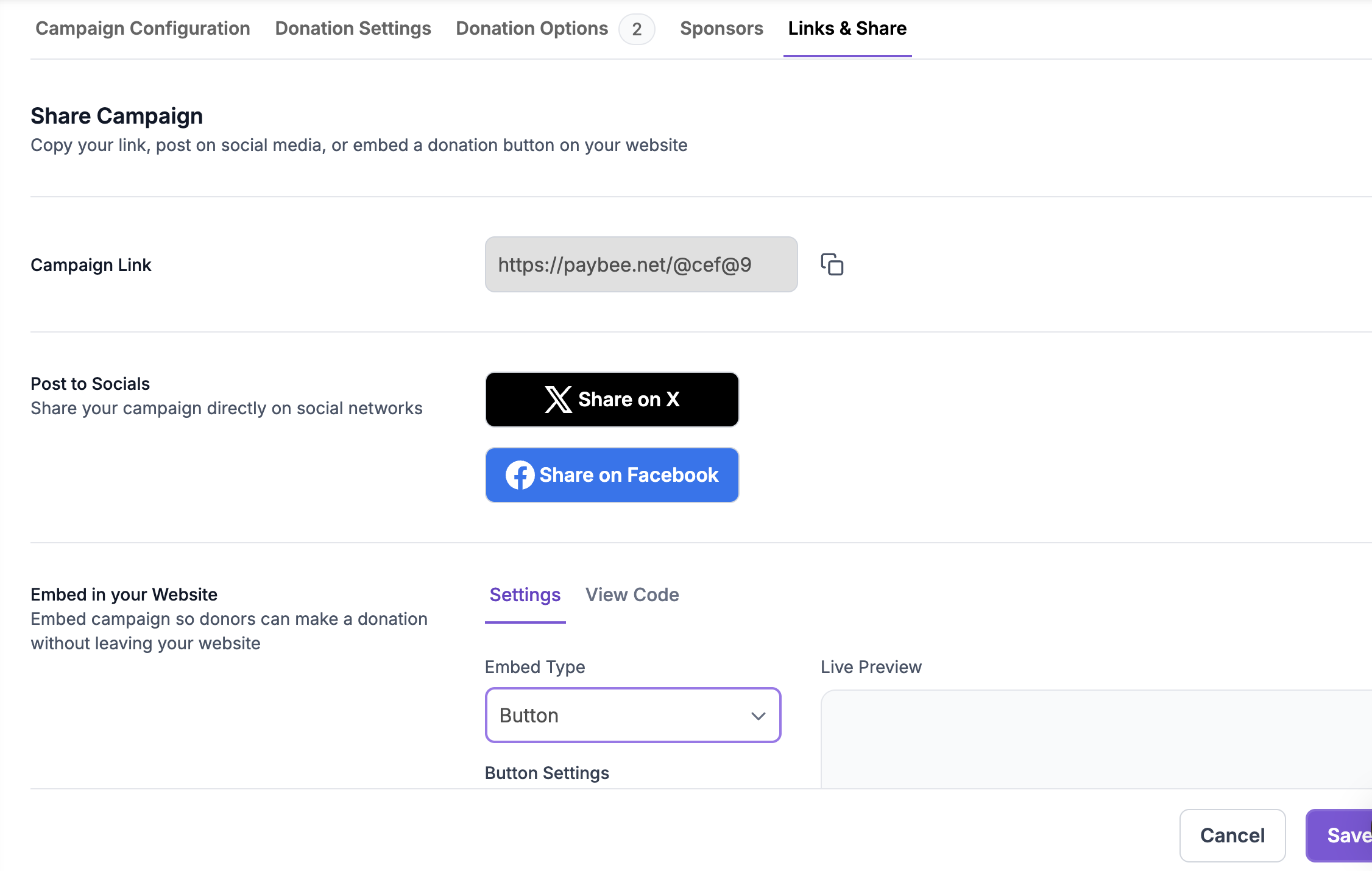
Once your campaign settings and options are added, go to the Links & Share tab to copy your campaign link, post on social media, add a donation form or embed a button or form linked to this campaign on your website.
For your print collateral, download the campaign QR code and use it in your design.
Choose to the QR code or links to share.
Choose the size of the QR code and then download.
If you want to send a link to all your active campaigns, then use the QR code/URL at the top of your dashboard.
## Add Sponsors
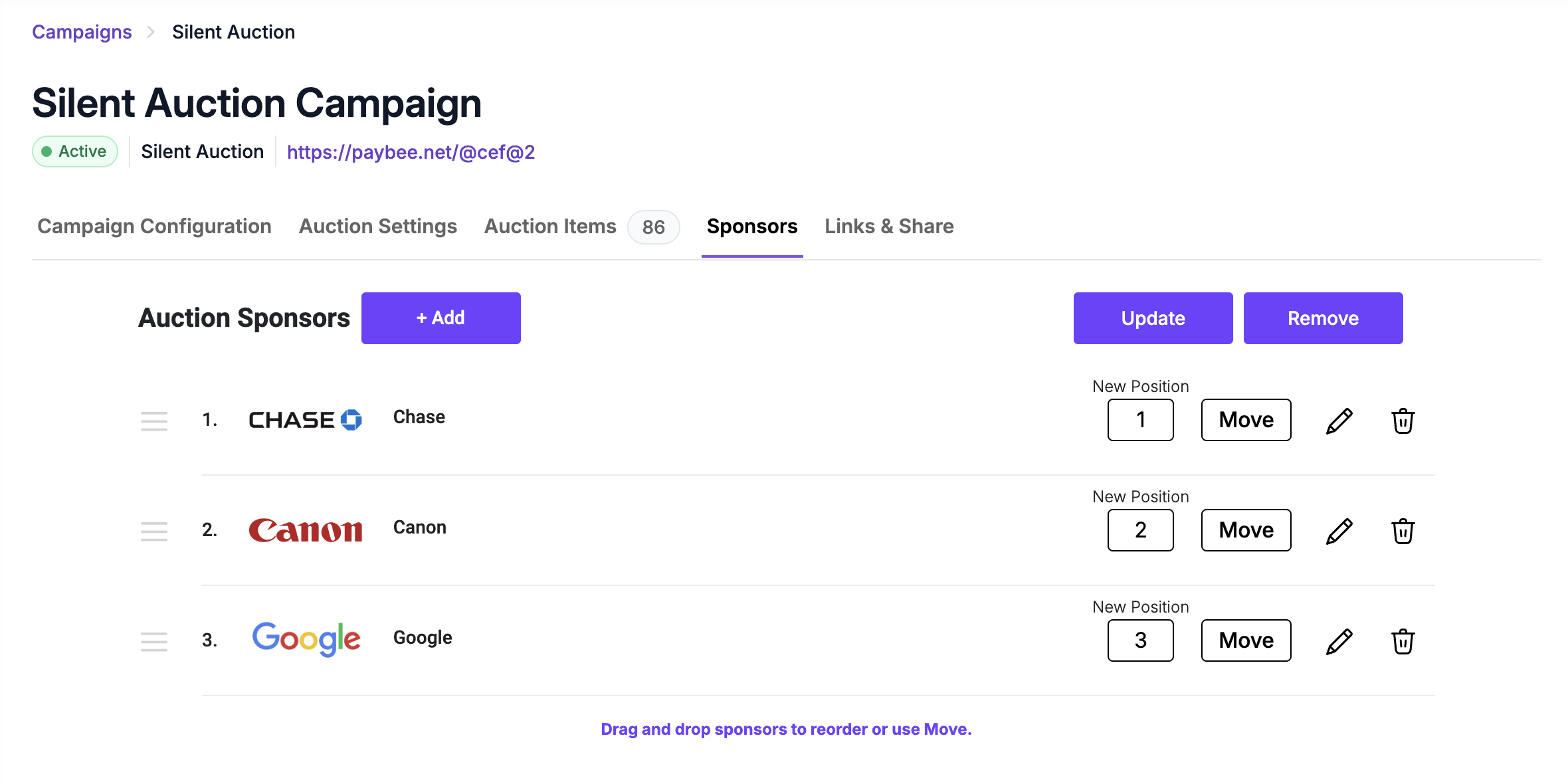
Add sponsor logos, names and links under the **Sponsors** tab if you'd like donors to see them when viewing your campaign. Sponsors are added in groups and the same sponsor group may be set for one or more campaigns on your account.
Example: Adding sponsors for a silent auction
## Overall Campaign Settings
This [guide](/home/resources/general-campaign-settings/general-campaign-settings.md) covers some common settings applicable to all types of campaigns. There are specific settings unique to each campaign that we include in the guide for each campaign which you can find all of the campaigns we offer in our [Fundraising Campaigns Guide](/home/guides/campaigns.md).