> For the complete documentation index, see [llms.txt](https://docs.paybee.io/home/llms.txt). Markdown versions of documentation pages are available by appending `.md` to page URLs; this page is available as [Markdown](https://docs.paybee.io/home/resources/general-campaign-settings/introducing-the-new-campaign-creation-and-configuration-experience.md).
# Introducing the New Campaign Creation & Configuration Experience
A guide to what’s changed and where to find key features while creating and managing your campaigns
We’ve updated the campaign creation and configuration experience to make it easier to build and monitor your campaigns.
While the core functionality remains the same, some tools and settings have moved or been reorganized. This guide walks you through the new layout and shows you where to find key campaign features in the updated experience.
Use this article to quickly orient yourself and understand how the new experience maps to what you’re used to.
## Creating A Campaign
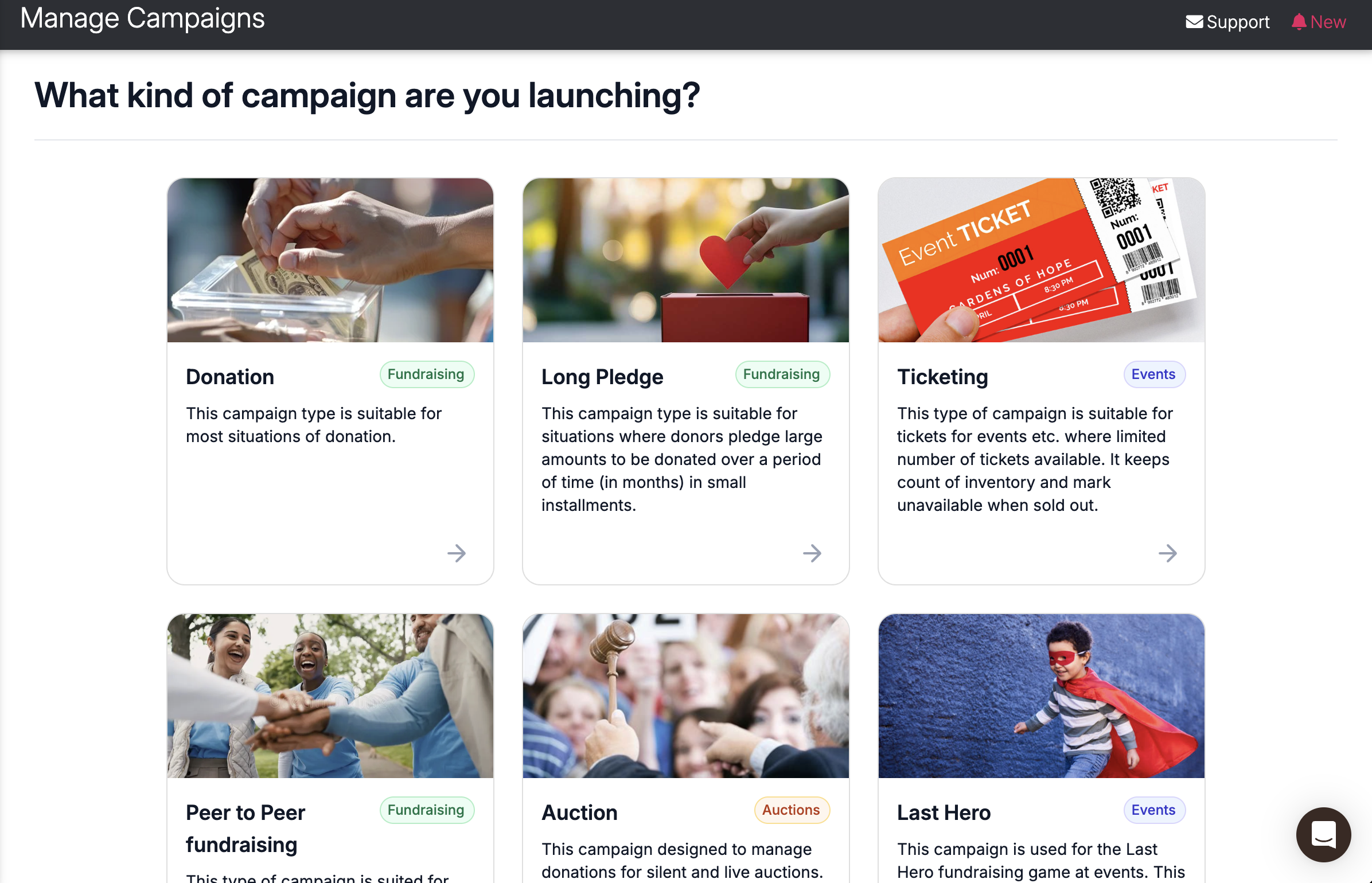
You can now create a campaign in just a few simple steps. Go to **Campaigns** from the menu and tap on the **New Campaign** button, select a campaign type, and fill in a few essential details to get started. Once the campaign is created, you can continue configuring important - but non-essential - settings, add campaign options, and share the campaign link with your donors.
If you’re not ready to complete everything right away, you can simply create the campaign and come back later to finish setting it up when it’s convenient.
## Campaign Configuration
Configuring your campaign after creating it can be divided into the following:
* [Editing General Settings](#editing-general-settings)
* [Setting Campaign-Specific Settings](#campaign-specific-settings)
* [Adding Campaign Options](#adding-campaign-options)
* [Adding Sponsors](#adding-sponsors)
* [Copy Links & Share](#copy-links-and-share)
### Editing General Settings
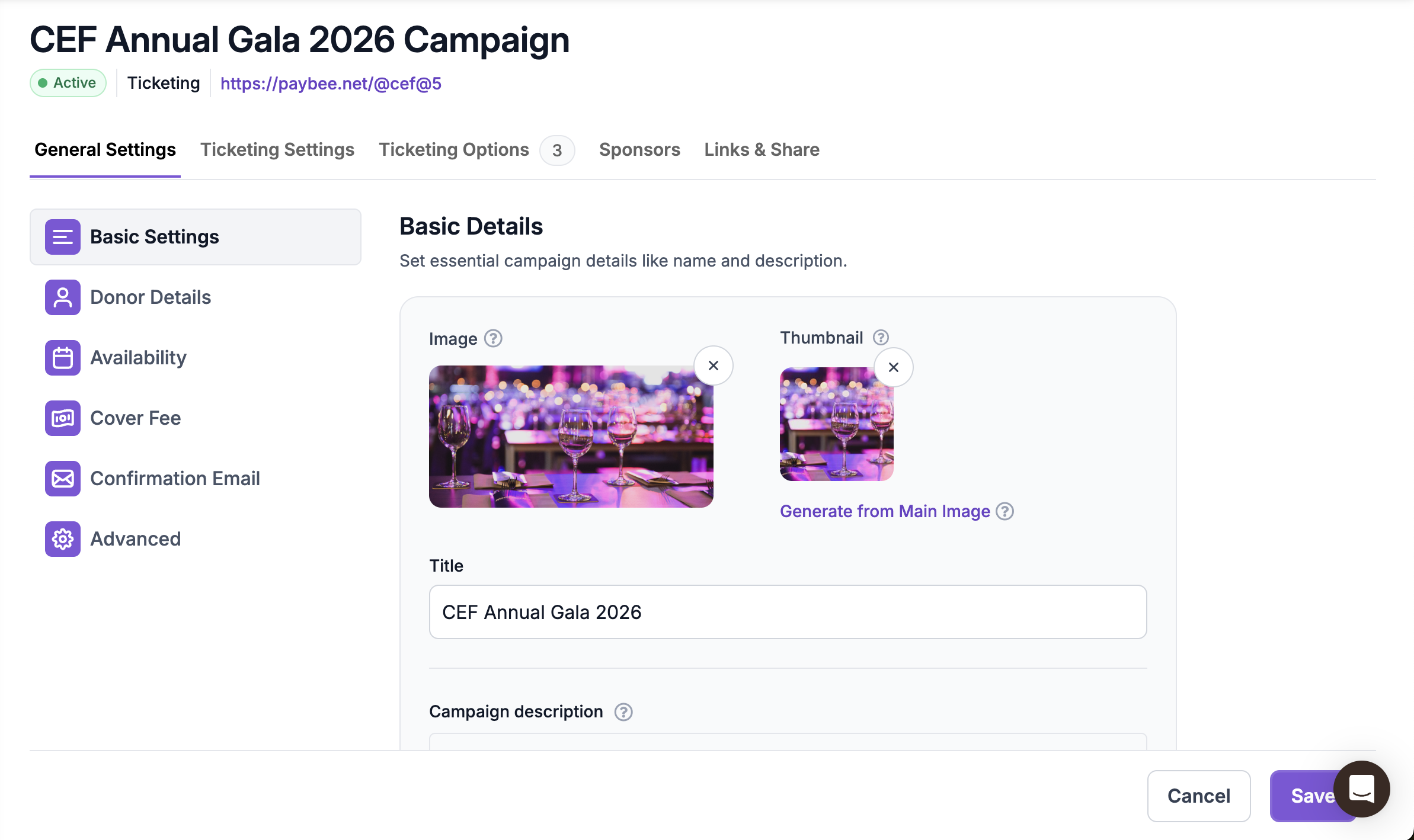
The sections under **General Settings** tab (can be seen after creating or while editing your campaign) have now been updated for ease of use. Most settings are common across all campaigns and you will now see them divided into the following sections:
1. Basic Details - Set essential campaign details like cover image, name, description, time zone, progress bar and promote other campaigns
2. Donor Details - Collect additional details from donors like address, phone number or set custom questions. Name and email are collected by default.
3. Availability - Set the automatic launch and end dates for your campaign
4. Cover Fee - Configure whether donors can cover your transaction fees
5. Confirmation Email - Customize confirmation emails sent to donors and notify your team of donations
6. Advanced - Fine-tune optional controls for donor-facing campaign behavior and back-end reporting
More information on all settings found under the General Settings tab can be found [here](/home/resources/general-campaign-settings/general-campaign-settings.md).
Example: editing General Settings for a ticketing campaign
### Campaign Specific Settings
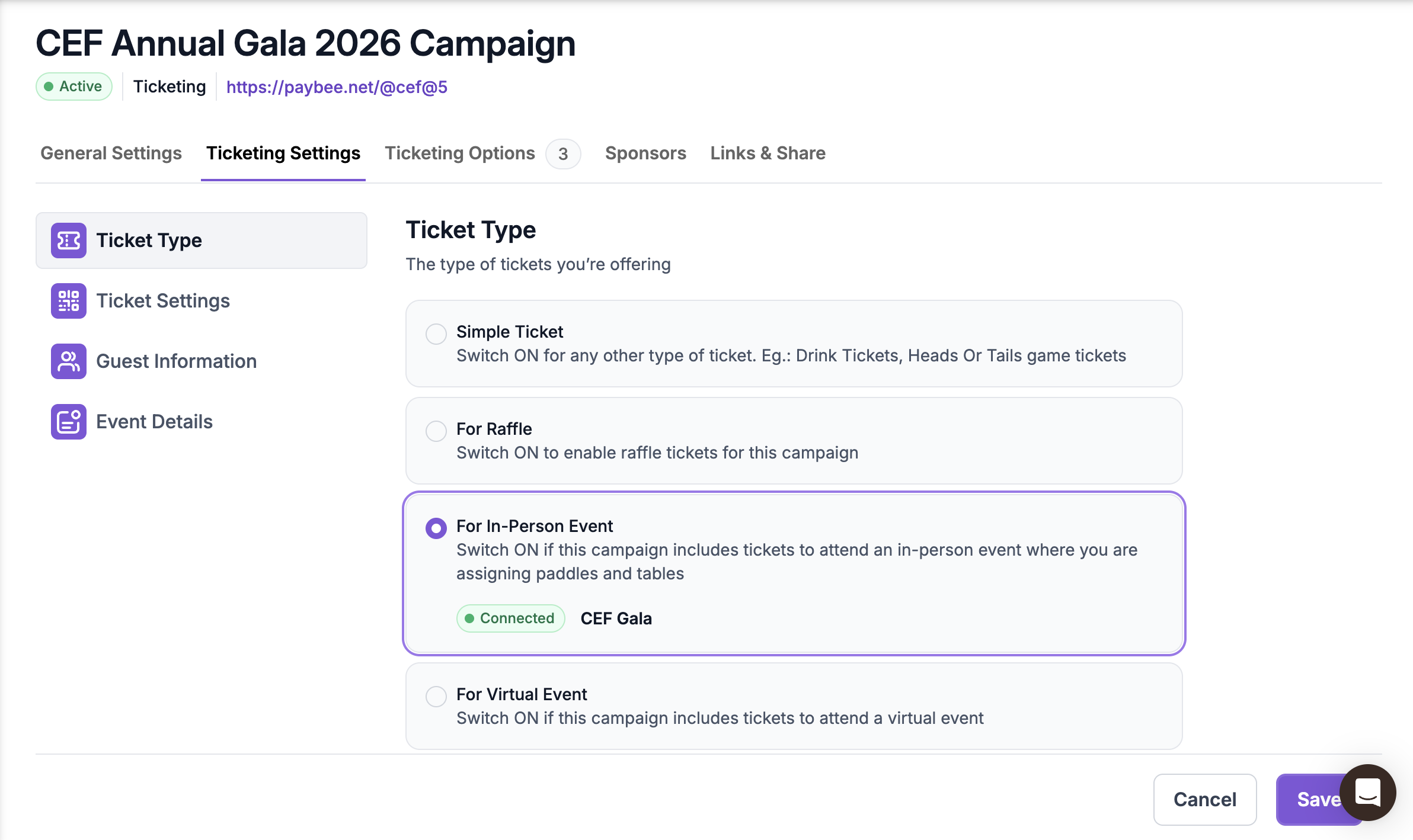
All settings associated with the type of campaign are now available under a separate tab. Examples of settings associated with a specific type of campaign include recurring donation frequency options for a donation campaign, auction start/stop/close settings and winner instructions for an auction campaign, ticket inventory and guest information collection settings for a ticketing campaign.
Example: Editing Ticketing Settings
### Adding Campaign Options
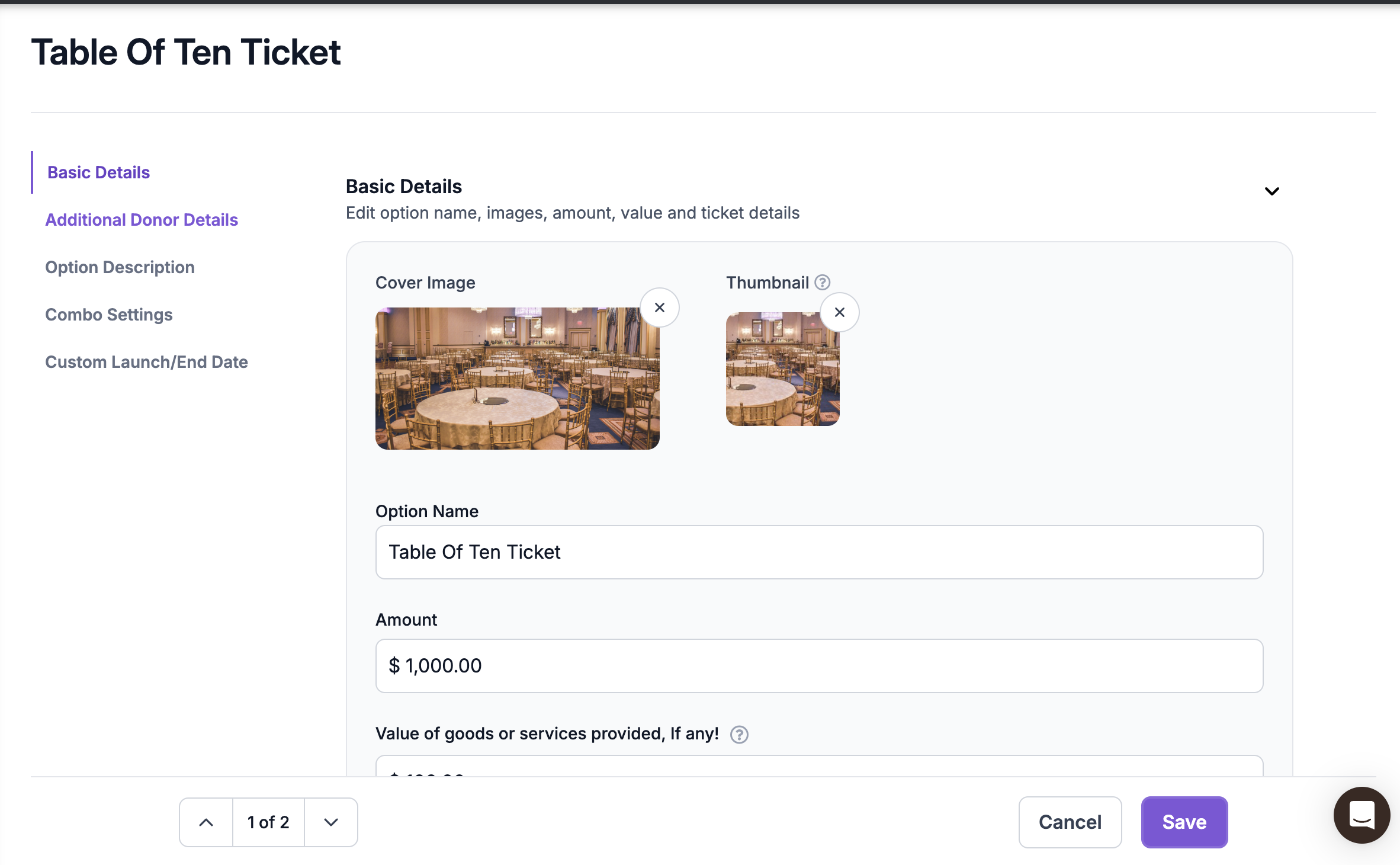
After updating the general and campaign-specific settings, add campaign options one by one or drag and drop a spreadsheet to bulk import all options. You can then edit, change the order of, copy, delete or deactivate your options. You can also copy and share the link to a specific option. The option settings are further divided into multiple sections depending on the type of campaign.
Example: Editing a ticketing option
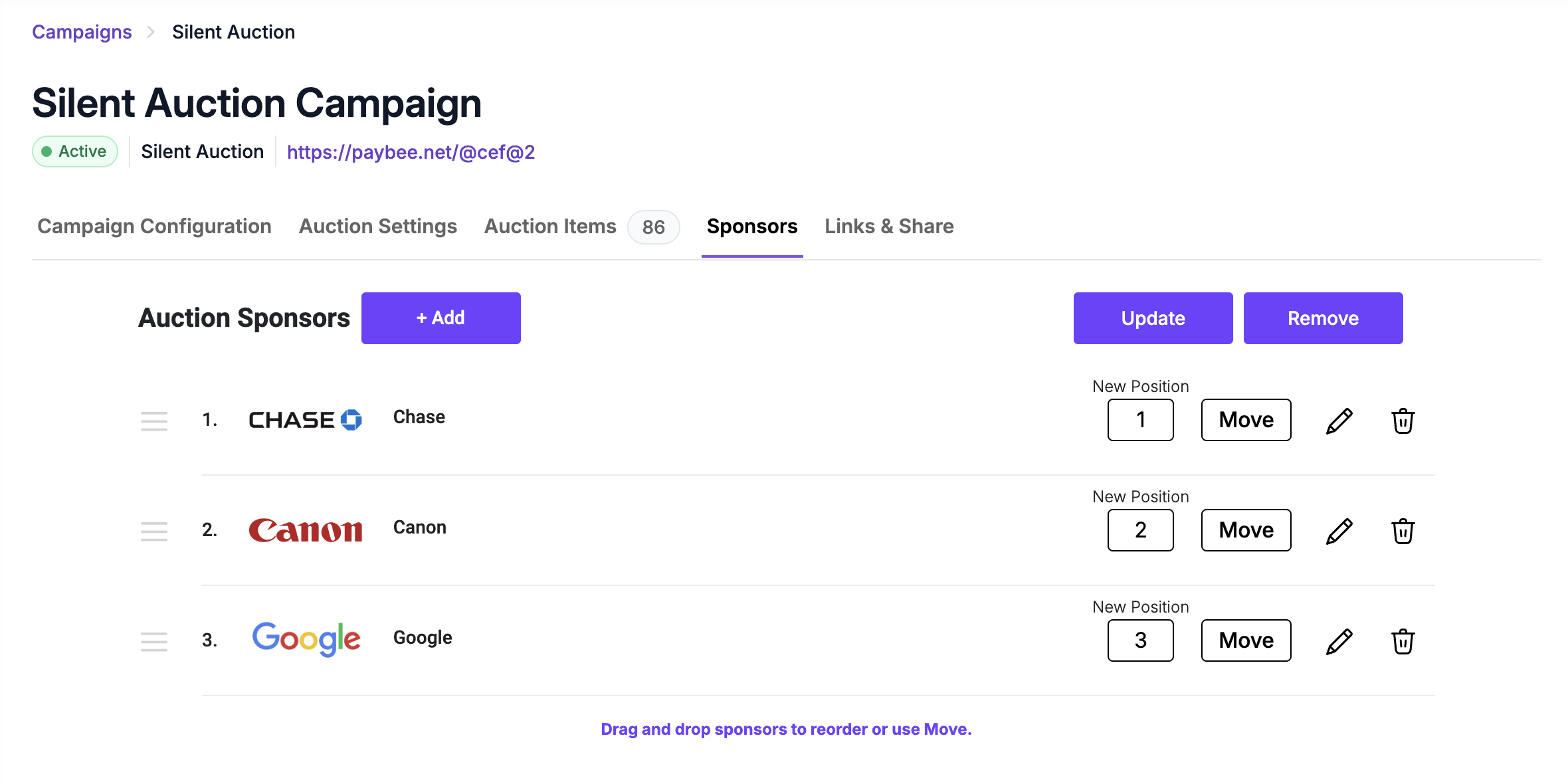
### Adding Sponsors
Add sponsor logos, names and links under the **Sponsors** tab if you'd like donors to see them when viewing your campaign. Sponsors are added in groups and the same sponsor group may be set for one or more campaigns on your account.
Example: Adding sponsors for a silent auction
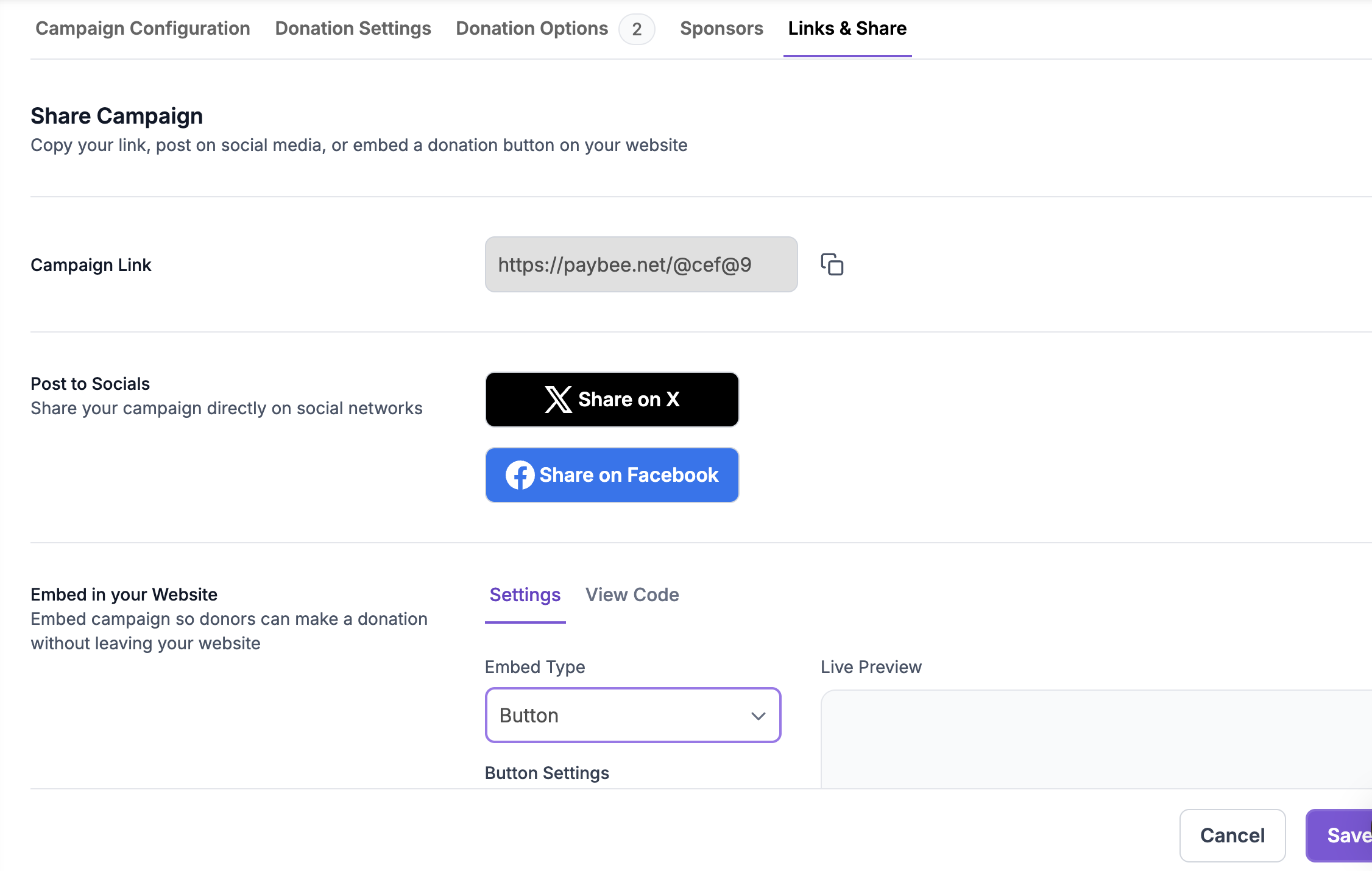
### Copy Links & Share
Once your campaign settings and options are added, go to the Links & Share tab to copy your campaign link, post on social media, add a donation form or embed a button linked to this campaign on your website.